




 English
 Translate
LILYGO T-Circle
Note: T-Circle is the ESP32 version. Click here to switch to the ESP32-S3 version T-Circle S3.
Version History:
| Version | Update Date | Update Description |
|---|---|---|
| T-Circle_V1.0 | 2021-03-14 | Initial Version |
Purchase Link
| Product | SOC | FLASH | PSRAM | Link |
|---|---|---|---|---|
| T-Circle | ESP32 | 16M | 8M (Octal SPI) | LILYGO Mall |
Table of Contents
- Description
- Preview
- Modules
- Quick Start
- Pin Overview
- Related Tests
- FAQ
- Projects
- Resources
- Dependent Libraries
Description
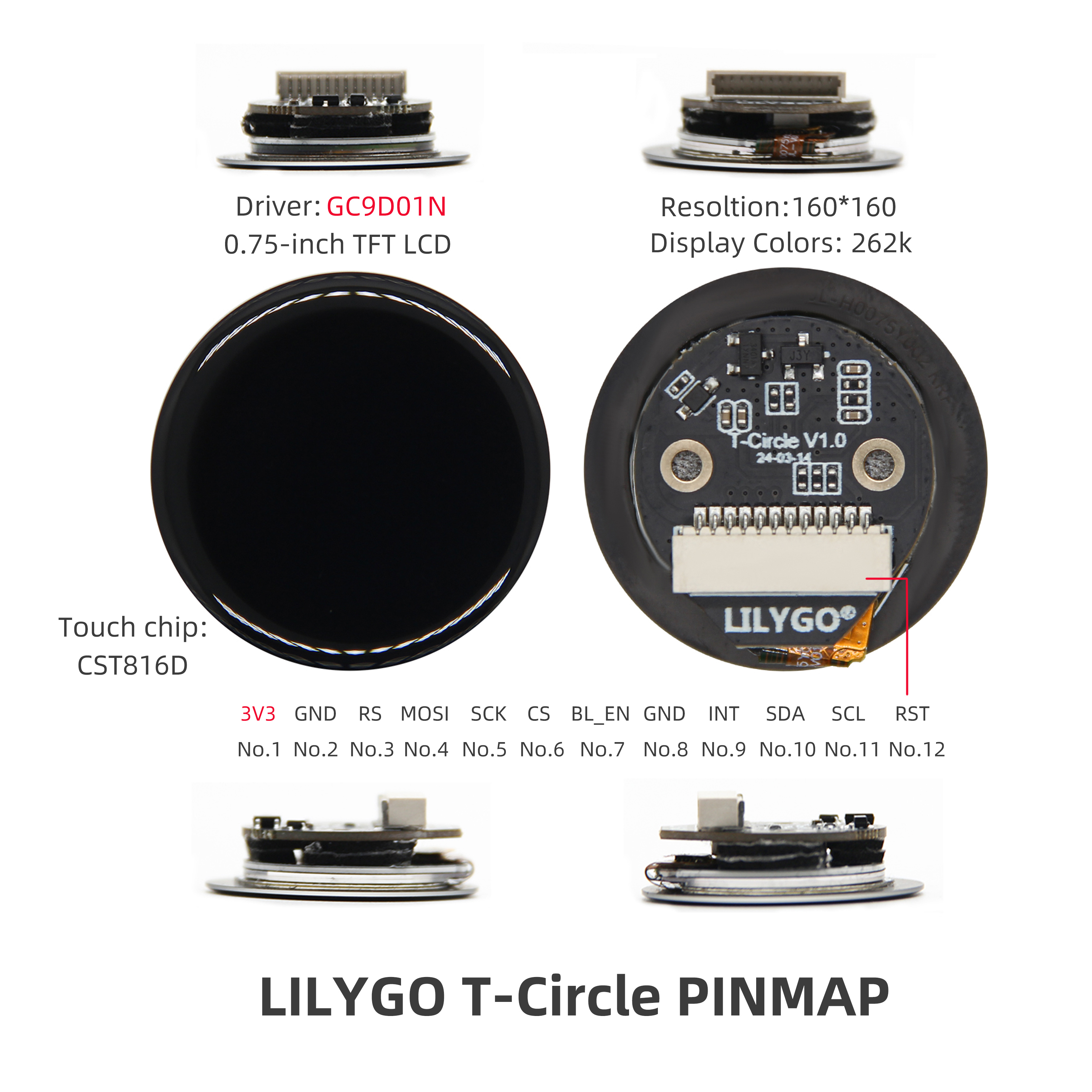
LILYGO T-Circle is a circular screen development board based on ESP32. It features a 0.75-inch TFT LCD circular display with 160x160 resolution and 262K color support, equipped with CST816D capacitive touch chip for precise touch interaction. The hardware uses GCPD01N driver chip and connects to external devices through 12 pins (including 3V3 power supply, SPI interface MOSI/SCK/CS, I2C communication SDA/SCL, BLE enable pin BLEEN, etc.), compatible with development frameworks like Arduino. Its compact design integrates high-precision display, touch control, and low-power communication functions, suitable for smart watches, IoT device interfaces, or prototype development of micro embedded systems.
Preview
Physical Images
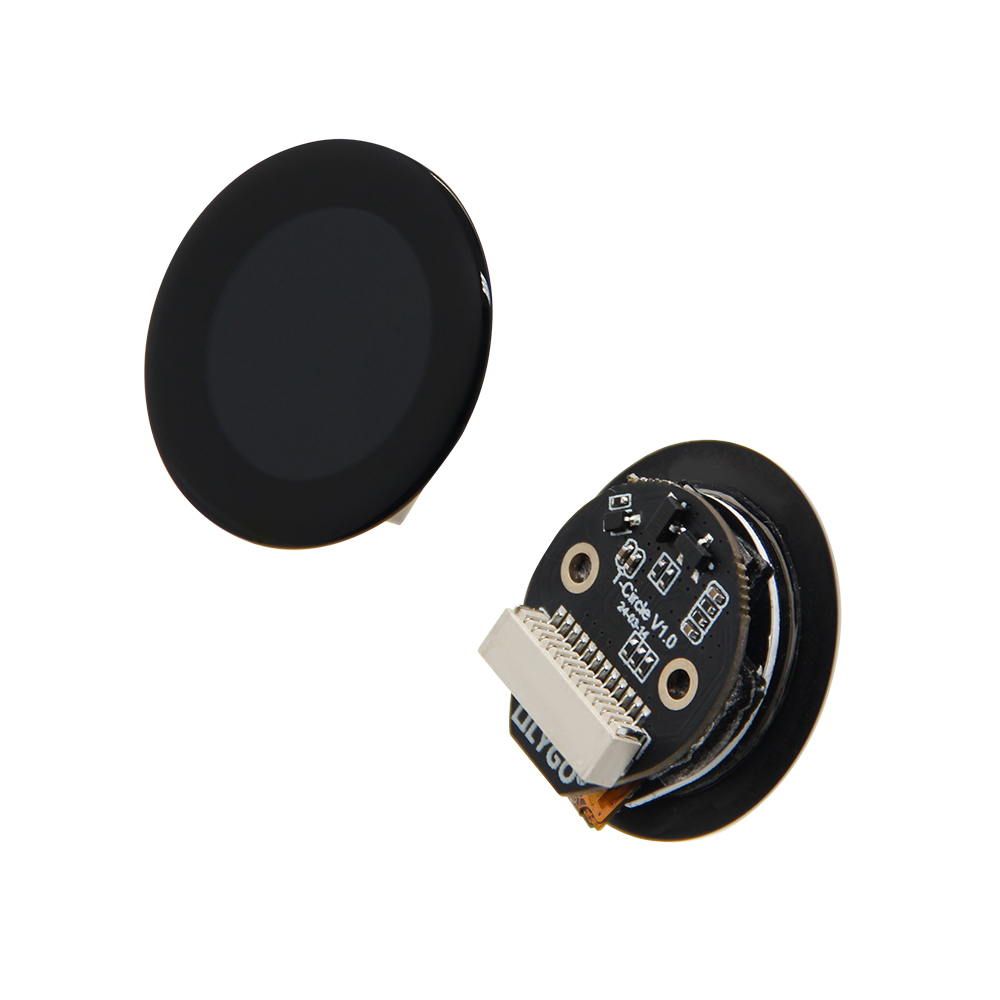
Pinout Diagram
Modules
1. MCU
- Chip: ESP32
- PSRAM: 8M (Octal SPI)
- FLASH: 16M
- Other Notes: For more information, please visit Espressif Official ESP32 Datasheet
2. Screen
- Size: 0.75-inch LCD circular screen
- Resolution: 160x160px
- Type: TFT LCD
- Driver IC: GC9D01N
- Compatible Libraries: TFT_eSPI, Arduino_GFX
- Bus Protocol: SPI
3. Touch
- Chip: CST816D
- Bus Protocol: I2C
Overview
| Component | Description |
|---|---|
| MCU | ESP32 |
| FLASH | 16MB |
| PSRAM | 8MB (Octal SPI) |
| Screen | 0.75-inch GC9D01N LCD (160x160) |
| Touch | CST816D Capacitive Touch Screen |
| Bus | SPI |
| Wireless | 2.4 GHz Wi-Fi & Bluetooth |
| Expansion Interface | 12pin expansion interface |
| Buttons | 1 x RESET button + 1 x BOOT button |
| Power | 5V/500mA |
| Mounting Holes | 2 × M1.6*2 |
| Dimensions | 32*17mm |
Quick Start
Example Support
| Example | PlatformIO/Arduino | ESP-IDF | Description |
|---|---|---|---|
| Basic Display | ✓ | Basic Display Example | |
| Touch Test | ✓ | Touch Test Example | |
| (More examples available in GitHub repository) |
PlatformIO
- Install Visual Studio Code according to your system.
- Open the "Extensions" sidebar in Visual Studio Code (or press Ctrl+Shift+X), search for the "PlatformIO IDE" extension and install it.
- While the extension is installing, download the project from GitHub. You can click the green "<> Code" button to download the main branch, or download a "Releases" version from the sidebar.
- After the extension installation is complete, open the Explorer sidebar (or press Ctrl+Shift+E), click "Open Folder", find the project code you just downloaded (the entire folder), click "Add", and the project files will be added to your workspace.
- Open the "platformio.ini" file in the project folder (PlatformIO should automatically open it after adding the folder). Under the "[platformio]" section, uncomment the line selecting the example program you want to upload (starting with "default_envs = xxx"). Then click the "√" at the bottom left to compile. If the compilation is successful, connect the board to your computer and click the "→" at the bottom left to upload.
Arduino
- Install Arduino IDE according to your system.
- Open the "example" directory in the project folder, select the example project folder, and open the file ending with ".ino" to open the Arduino IDE project workspace.
- Open the "Tools" menu -> "Board" -> "Boards Manager", find or search for "esp32", and install the board files by "Espressif Systems". Then return to the "Board" menu and select the board type under "ESP32 Arduino". The board type to choose is determined by the "board = xxx" header in the "[env]" section of the "platformio.ini" file. If the corresponding board is not available, you need to manually add the board from the "board" directory in the project folder.
- Open the "[File]" -> "[Preferences]" menu, find the "[Sketchbook location]" field. Copy and paste all library files and folders from the "libraries" directory in the project folder into the "libraries" folder at this location.
- Select the correct settings in the "Tools" menu as shown in the table below.
ESP32
| Setting | Value |
|---|---|
| Board | ESP32 Dev Module |
| Upload Speed | 921600 |
| CPU Frequency | 240MHz (WiFi) |
| Flash Mode | QIO 80MHz |
| Flash Size | 16MB (128Mb) |
| Core Debug Level | None |
| Partition Scheme | Default Configuration |
| PSRAM | Enabled |
- Select the correct port.
- Click the "√" in the top right corner to compile. If the compilation is successful, connect the board to your computer and click the "→" to upload.
Development Platforms
Related Tests
(Power consumption and other test data to be added)
FAQ
Q. I still don't know how to set up the programming environment after reading the above tutorial. What should I do?
A. If you still don't understand how to set up the environment after reading the above tutorial, you can refer to the LilyGo-Document documentation for setup instructions.Q. Why does my board keep failing to upload programs?
A. Please hold down the "BOOT" button, then press the "RST" button once, and then click upload to enter download mode.Q. What's the difference between T-Circle and T-Circle S3?
A. T-Circle uses ESP32 as the main controller, while T-Circle S3 uses the more powerful ESP32-S3. Please choose the appropriate version according to your project requirements.
Projects
- T-Circle-S3 (Please note, this schematic is for the S3 version. For ESP32 version schematic, please refer to the GitHub repository)