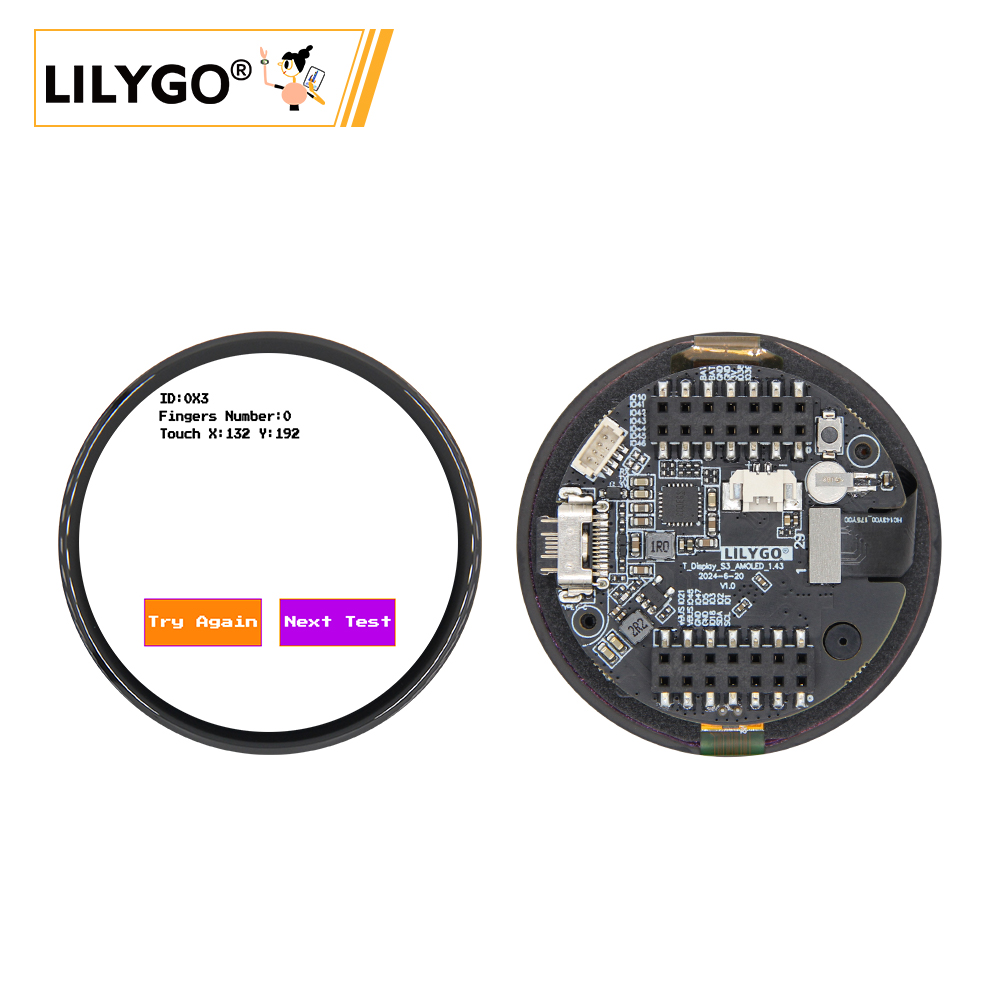
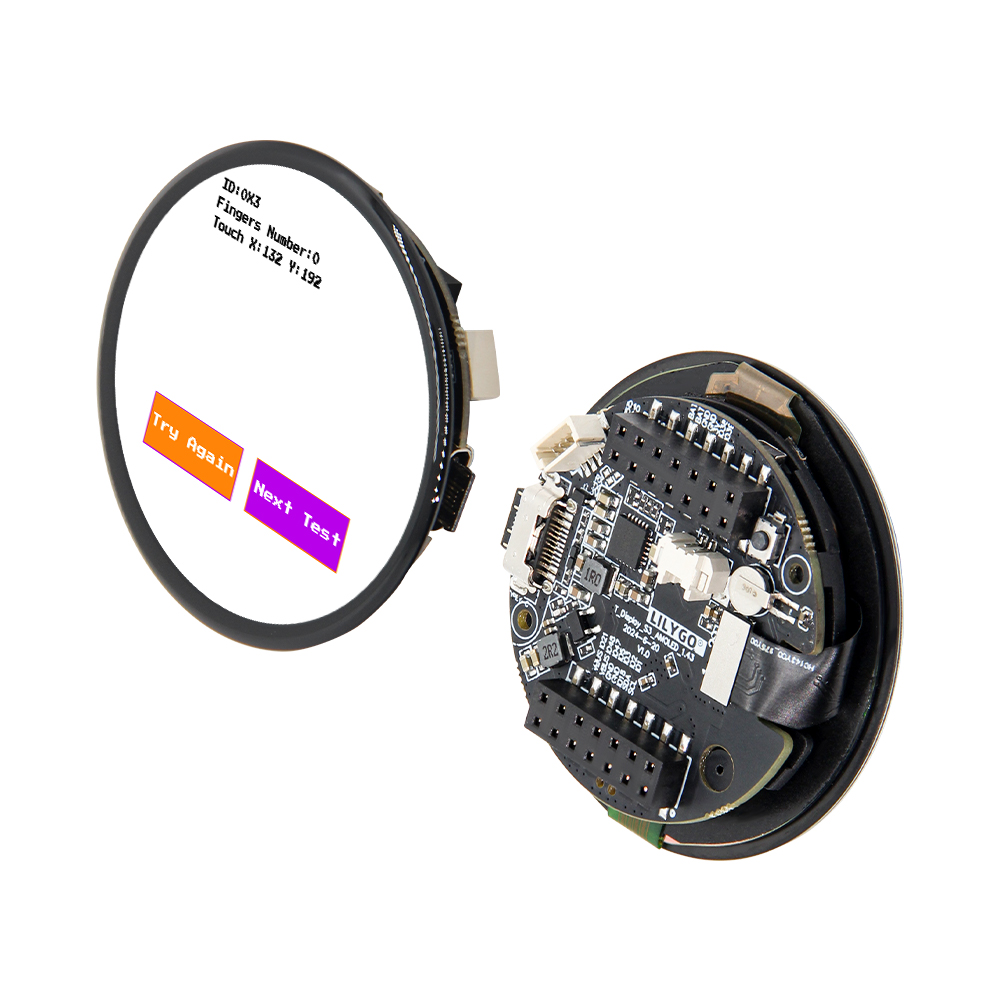
LILYGO T-Display S3 AMOLED 1.43
Version History:
| Version |
Update Date |
Update Description |
| T-Display-S3-AMOLED-1.43_V1.0 |
2024-05-20 |
Initial Version |
| T-Display-S3-AMOLED-1.43-1.75_V1.0 |
2024-11-25 |
Added FPC cable, added H0175Y003AM screen support |
| T-Display-S3-AMOLED-1.43-1.75_V1.0 |
2025-01-13 |
Added DO0143FMST10 screen support |
Purchase Link
| Product |
SOC |
FLASH |
PSRAM |
Link |
| T-Display-S3-AMOLED-1.43-1.75 |
ESP32S3R8 |
16M |
8M (Octal SPI) |
LILYGO Mall |
Description
T-Display AMOLED Plus is a highly integrated development board based on the ESP32-S3 microcontroller, focusing on multi-functionality and high performance. Its core features 16MB Flash and 8MB PSRAM, supporting complex application operations. Equipped with a 1.25-inch AMOLED display with touch support. Built-in PMU (Power Management Unit) and RTC (Real-Time Clock), combined with VBUS power management, optimize low-power design. For expansion, it provides dual STEMMA QT/Qwlic interfaces, compatible with quick sensor connections; supports SD card storage, and reserves rich GPIO, ADC channels, and UART communication interfaces for peripheral expansion. Additionally, onboard BOOT mode switching and reset circuits simplify development and debugging. This product is suitable for smart wearables, IoT terminals, and other scenarios requiring display interaction and multi-sensor integration.
Preview
Physical Images
Pinout Diagram
Modules
MCU
Screen
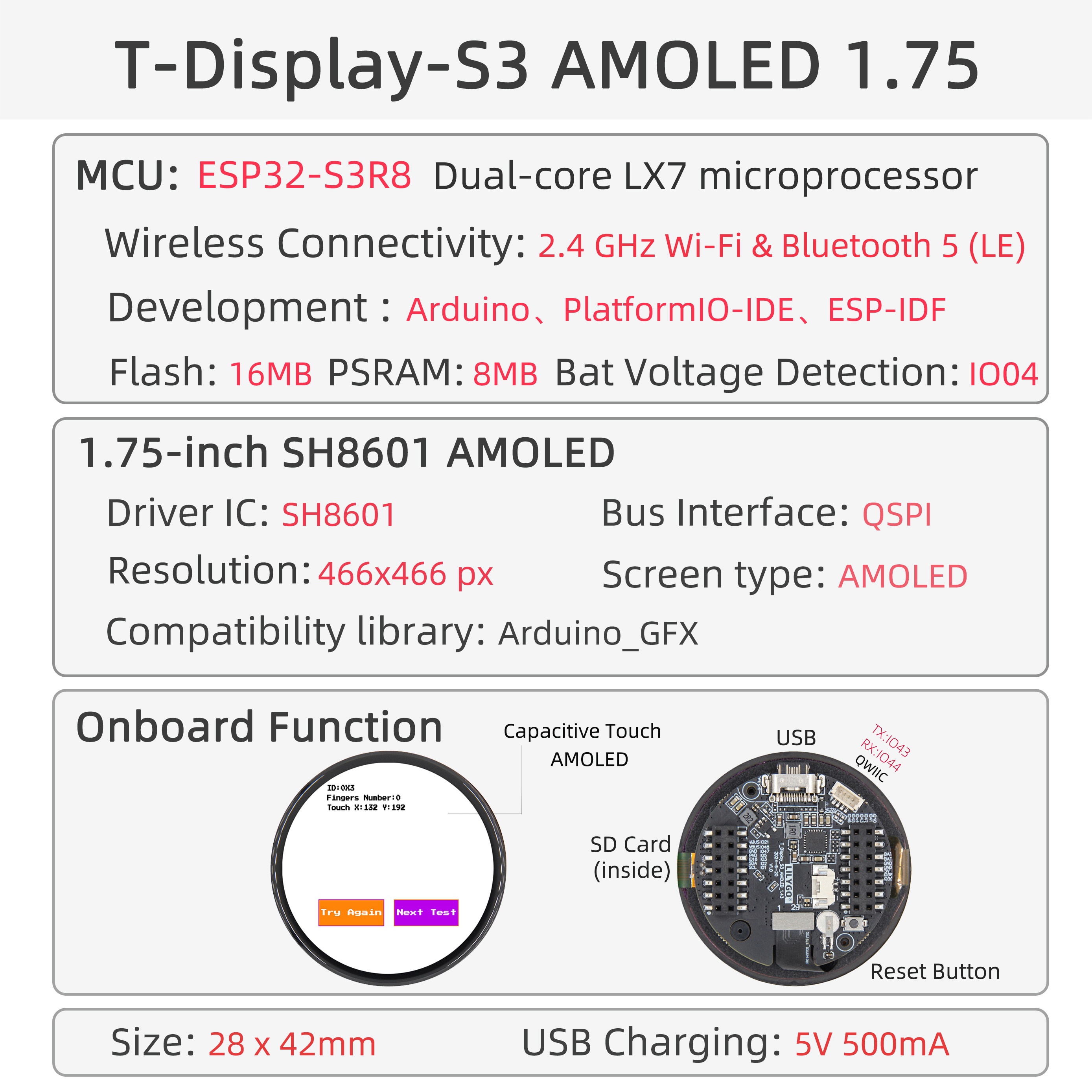
- Size: 1.75-inch AMOLED
- Resolution: 280×456px
- Type: AMOLED
- Driver IC: ICMA3311
- Compatible Libraries: Arduino_GFX
- Bus Protocol: QSPI
Overview
| Component |
Description |
| MCU |
ESP32-S3R8 Dual-core LX7 microprocessor |
| FLASH |
16MB |
| PSRAM |
8MB |
| Screen |
1.75-inch SH8601 AMOLED |
| Touch |
FT3168 Capacitive Touch Screen |
| Bus |
QSPI |
| LoRa |
1276:868,915Mhz |
| Storage |
TF Card |
| Charging Chip |
SY6970 |
| RTC |
PCF8563 |
| Wireless |
2.4 GHz Wi-Fi & Bluetooth 5 (LE) |
| USB |
1 × USB Port and OTG (TYPE-C Interface) |
| IO Interface |
2 x 2.54mm pitch 2*7 extended IO interface |
| Expansion Interfaces |
1 × QWIIC interface + JST-GH 1.25MM interface + 1 x battery connector |
| Buttons |
1 x RESET button + 1 x BOOT button |
| Dimensions |
45x45x11mm |
The output waveform of this chip will be very unstable when powered by 5V without battery. It is necessary to connect a battery for use or use software to close the battery channel, in which case the situation will be alleviated.
Quick Start
Example Support
Github:T-Display-S3-AMOLED-1.64
- Install Visual Studio Code according to your system.
- Open the "Extensions" sidebar in Visual Studio Code (or press Ctrl+Shift+X), search for the "PlatformIO IDE" extension and install it.
- While the extension is installing, download the project from GitHub. You can click the green "<> Code" button to download the main branch, or download a "Releases" version from the sidebar.
- After the extension installation is complete, open the Explorer sidebar (or press Ctrl+Shift+E), click "Open Folder", find the project code you just downloaded (the entire folder), click "Add", and the project files will be added to your workspace.
- Open the "platformio.ini" file in the project folder (PlatformIO should automatically open it after adding the folder). Under the "[platformio]" section, uncomment the line selecting the example program you want to upload (starting with "default_envs = xxx"). Then click the "√" at the bottom left to compile. If the compilation is successful, connect the board to your computer and click the "→" at the bottom left to upload.
Arduino
- Install Arduino IDE according to your system.
- Open the "example" directory in the project folder, select the example project folder, and open the file ending with ".ino" to open the Arduino IDE project workspace.
- Open the "Tools" menu -> "Board" -> "Boards Manager", find or search for "esp32", and install the board files by "Espressif Systems". Then return to the "Board" menu and select the board type under "ESP32 Arduino". The board type to choose is determined by the "board = xxx" header in the "[env]" section of the "platformio.ini" file. If the corresponding board is not available, you need to manually add the board from the "board" directory in the project folder.
- Open the "[File]" -> "[Preferences]" menu, find the "[Sketchbook location]" field. Copy and paste all library files and folders from the "libraries" directory in the project folder into the "libraries" folder at this location.
- Select the correct settings in the "Tools" menu as shown in the table below.
ESP32-S3
| Setting |
Value |
| Board |
ESP32S3 Dev Module |
| Upload Speed |
921600 |
| USB Mode |
Hardware CDC and JTAG |
| USB CDC On Boot |
Enabled |
| USB Firmware MSC On Boot |
Disabled |
| USB DFU On Boot |
Disabled |
| CPU Frequency |
240MHz (WiFi) |
| Flash Mode |
QIO 80MHz |
| Flash Size |
16MB (128Mb) |
| Core Debug Level |
None |
| Partition Scheme |
16M Flash (3MB APP/9.9MB FATFS) |
| PSRAM |
OPI PSRAM |
| Arduino Runs On |
Core 1 |
| Events Run On |
Core 1 |
- Select the correct port.
- Click the "√" in the top right corner to compile. If the compilation is successful, connect the board to your computer and click the "→" to upload.
Projects
Resources
Dependent Libraries





 English
 Translate