Factory Firmware User Guide
The factory firmware (UI Demo) is the program pre-installed on the T-Lora Pager before shipping. It is built on top of LilyGoLib and LVGL, and provides a launcher-style interface that lets you try out every on-board peripheral — LoRa, GPS, the AI IMU, audio, NFC, the QWERTY keyboard, power management and more — without writing a single line of code.
Use this guide to learn how to navigate the interface and what each built-in app does. For instructions on rebuilding and re-flashing the firmware, see the main product page.
Source code:
examples/factoryin the LilyGoLib repository.
Flashing
ESP32 烧录工具 (官方API)
选择固件
操作日志
Controls
The T-Lora Pager is driven mainly by the rotary encoder plus the QWERTY keyboard.
| Control | Action |
|---|---|
| Rotate encoder | Move the focus between menu icons / list items / options |
| Press encoder (center) | Select / confirm the focused item (click) |
| QWERTY keyboard | Type text into input fields (chat, Wi-Fi password, nicknames, sync word, …) |
Back button (on-screen ‹) | Return from an app to the home menu |
| BOOT button (side) | Wake the device from light/deep sleep |
| Power button | Long-press behaviour is handled by the power IC (see the power tests) |
Text input tip: in fields such as the chat box or Wi-Fi password, click the encoder once to enter edit mode — this enables the physical keyboard so you can type. Press Enter (or click the encoder again) to confirm and leave edit mode.
Home Screen
After the LilyGo boot logo, the device lands on the home menu: a horizontal, scrollable row of application icons. The label at the bottom shows the name of the currently focused app.
- Rotate the encoder to scroll through the apps.
- Press the encoder to open the focused app.
Clock & low-power screen
If you leave the device idle on the home menu for about 10 seconds, it dims the keyboard backlight, drops the CPU to a lower frequency and shows a full-screen clock (time, date, day of week and battery percentage). Any input wakes it back to the menu. After a further configurable timeout the display turns off entirely to save power.
Low-battery protection: when the battery falls below ~3.3 V (and USB is not connected) the firmware shows a "Battery Low — Shutting down…" screen and powers the device off to protect the cell.
Built-in Apps
The exact set of icons depends on the hardware fitted to your unit (LoRa variant, optional modules, etc.). The common apps on the T-Lora Pager are described below.
Setting
System configuration, organised into sub-pages:
- Display & Backlight — display brightness, keyboard backlight, LED indicator brightness, and the display-off timeout.
- System Info — MAC address, Wi-Fi SSID, RTC date/time, IP address, RSSI, battery voltage, SD-card / storage size, LVGL version, Arduino-ESP32 core version, firmware build time, firmware hash and chip ID.
- Devices status — a live "online / offline" probe of every I²C/SPI peripheral, so you can verify the hardware is detected.
- Charger — enable/disable charging, set the charge current, and toggle OTG (5 V boost output) on supported boards.
Wireless
Scan for nearby Wi-Fi networks and connect. Once connected, the firmware synchronises the RTC from an NTP server automatically. The connection details then appear under Setting → System Info.
LoRa
A LoRa radio test bench for the fitted module (SX1262 / SX1280 / LR1121 / CC1101 …). Configure mode (TX / RX / Continuous Wave), frequency, bandwidth, TX power, TX interval, coding rate, spreading factor and sync word, then press OK to apply. In TX mode the device transmits an incrementing counter; in RX mode it shows received payloads with their RSSI. If no radio is fitted the app shows "Radio module not detected!".
Use two pagers (or a pager + another LoRa node) with matching parameters — one in TX and one in RX — to verify end-to-end communication.
LoRa Chat
A simple text messenger over LoRa. Type a message on the keyboard and send it; incoming messages from another node using the same LoRa parameters are shown in the conversation view. (It reuses the radio settings configured in the LoRa app.)
Walkie
An ESP-NOW half-duplex walkie-talkie using the on-board microphone and speaker with the G.722 wideband codec.
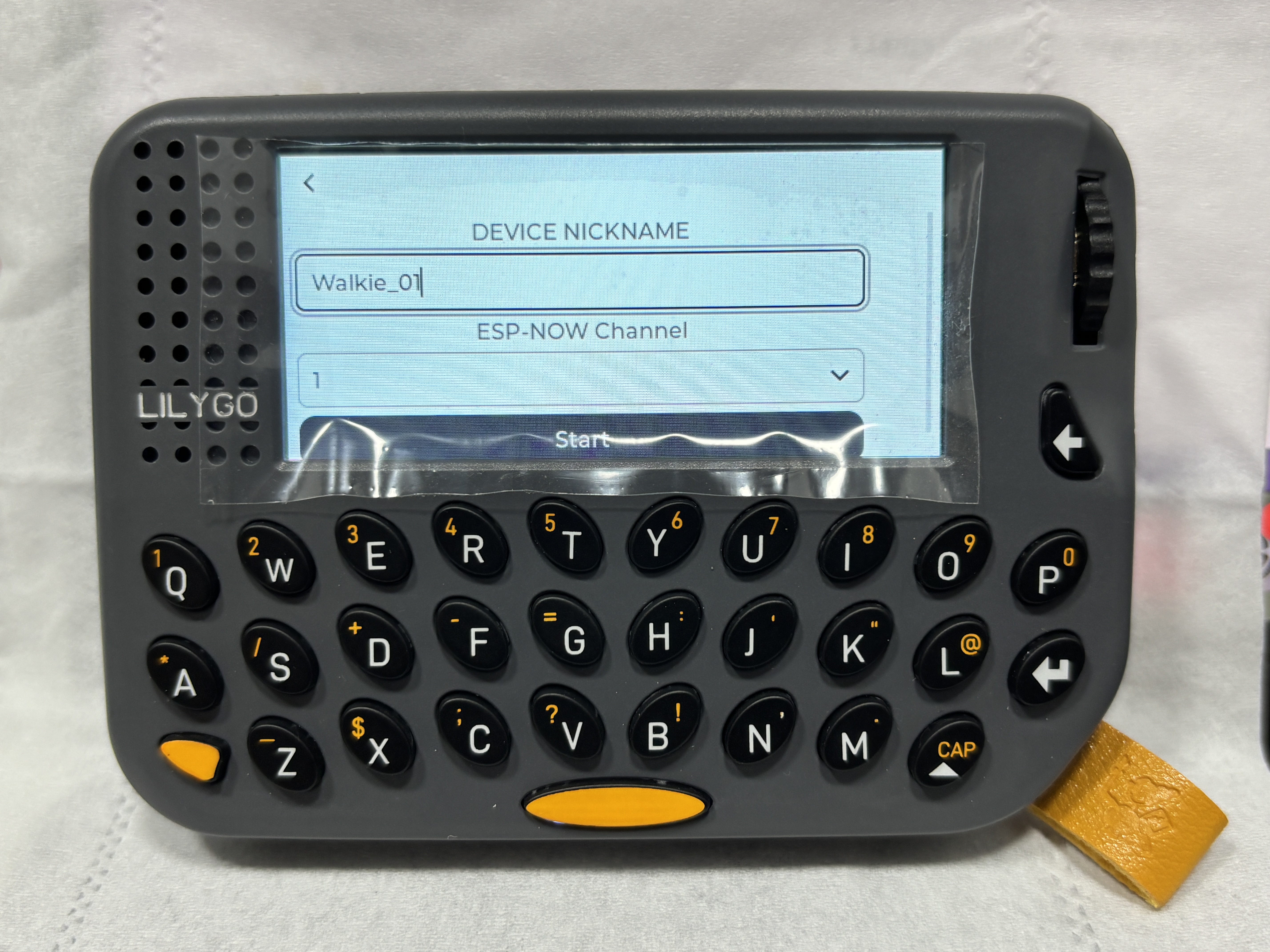
On the setup page, choose a nickname and an ESP-NOW channel, then press Start. (If Wi-Fi is already connected, the channel is locked to the Wi-Fi channel.)
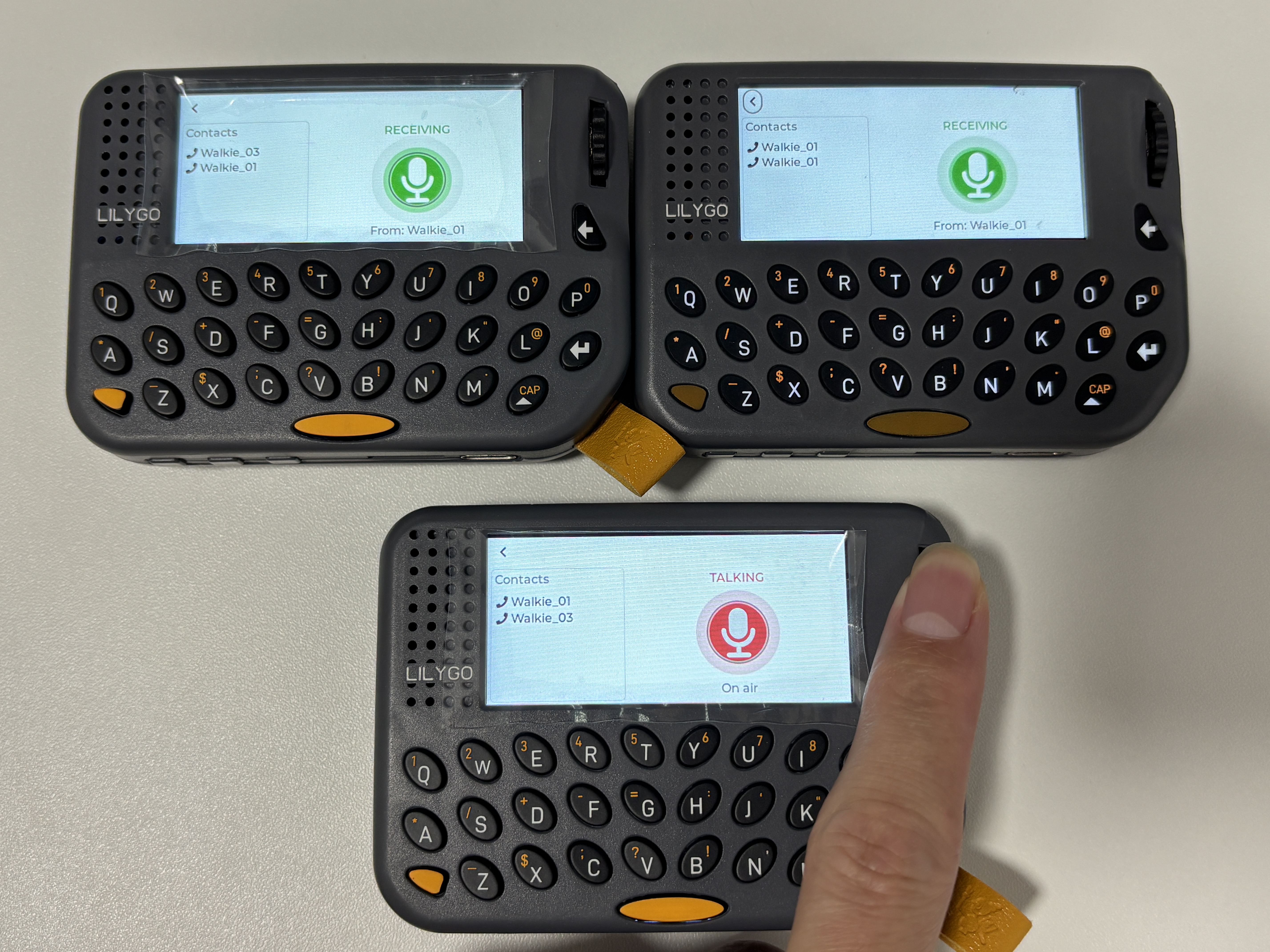
On the talk page, nearby pagers appear in the Contacts list automatically.
Press and hold the microphone button (PTT) to talk; release to listen. The status shows TALKING / RECEIVING / IDLE and who is currently on air.
GPS
Shows live data from the U-blox MIA-M10Q GNSS module: latitude, longitude, date/time, speed, satellites in use and PPS. For a position fix, use the device outdoors with a clear view of the sky — the first fix can take a minute or more.
Music
An MP3 player. Place .mp3 files on a microSD card (or in the on-board filesystem) and they appear in a play list. Play/pause tracks and adjust the volume with the encoder; audio quality effects (e.g. 3D / A-B) are available on the playback screen. If no files are found it tells you to add MP3s to the SD card.
Microphone
A real-time audio spectrum (FFT) visualiser driven by the ES8311 microphone — useful for confirming the mic is capturing audio.
IMU
Reads the Bosch BHI260AP AI IMU and displays orientation (roll, pitch, heading) with an animated indicator.
Monitor
A detailed power/battery dashboard from the BQ25896 charger and BQ27220 fuel gauge: charge state, battery voltage, system voltage, battery percentage, USB voltage, temperature, instantaneous current, remaining/full-charge/design capacity, average power, time-to-empty / time-to-full and more.
Power
Shutdown / sleep controls — choose Shutdown to power off, Sleep to enter low-power sleep, or Close to return to the menu.
NFC
Exercises the ST25R3916 NFC reader. Bring an NFC tag/card close to the back of the device to read it.
BLE Keyboard
Turns the pager into a Bluetooth HID keyboard. Pair it with a PC/phone from your host's Bluetooth settings, then keystrokes typed on the pager are sent to the host. The screen shows the device name, connection state and battery level.
Keyboard
A keyboard test screen with an input field — type to confirm every key works. It also lists the modifier shortcuts (backlight / symbol / capitalize) for your keyboard revision.
Camera Remote
A Bluetooth camera shutter. The pager advertises as a BLE HID device; pair it with your phone, open the camera app, and press the on-screen button to trigger the shutter (sends the Volume Up media key).
Screen Test
A display self-test. It cycles through a grey-scale gradient and solid red / green / blue / white / black fields (about 3 seconds each) so you can check for dead pixels or colour problems. Click or wait for the cycle to finish to return to the menu.
NRF24 (optional)
Available when an external nRF24L01 module is fitted to the expansion socket — a 2.4 GHz radio test similar to the LoRa app.
FAQ
Q. An app shows the module as "not detected" or "offline". A. Open Setting → Devices status to see which peripherals were probed at boot. A LoRa app will only work if your unit actually has that radio variant fitted.
Q. The keyboard doesn't type in a text field. A. Click the encoder once while the field is focused to enter edit mode (this enables the keyboard). Press Enter to confirm.
Q. The screen keeps going dark. A. That is the low-power timeout. Press the encoder/keyboard to wake it, and raise Setting → Display & Backlight → Display Timeout if you want it to stay on longer.
Q. GPS shows no fix. A. Use the device outdoors with a clear sky view; the first cold fix can take a while.